Pulsely Uptime Sync
Do you rely on your website to drive traffic and business? Do you worry about unexpected downtime? Pulsely Uptime Sync is here to help. Our new app allows you to monitor the uptime status of multiple websites and syncs the data across all of your Mac computers. Plus, with the upcoming release of our iOS and iPadOS versions, you'll be able to stay connected on the go.
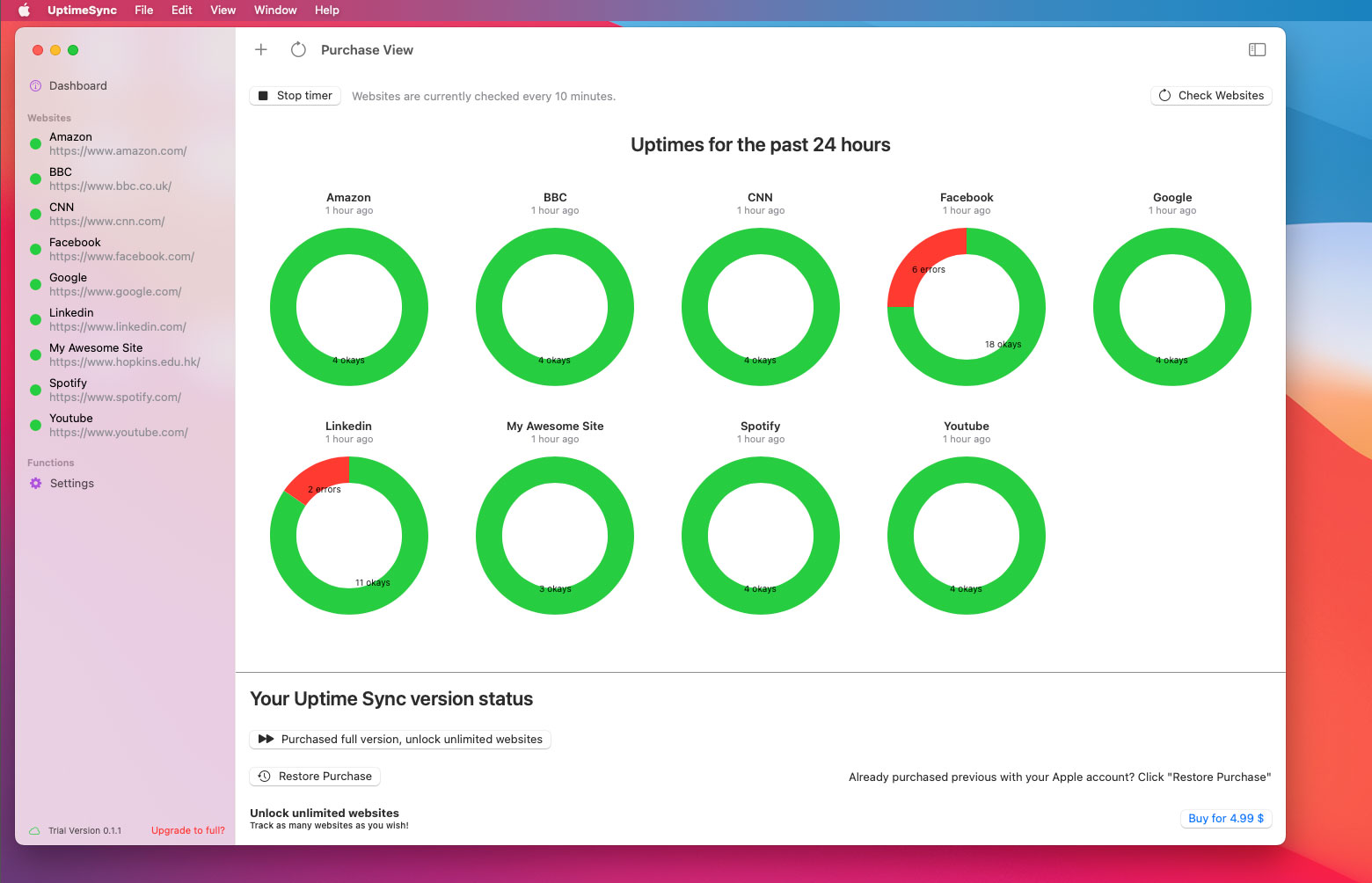
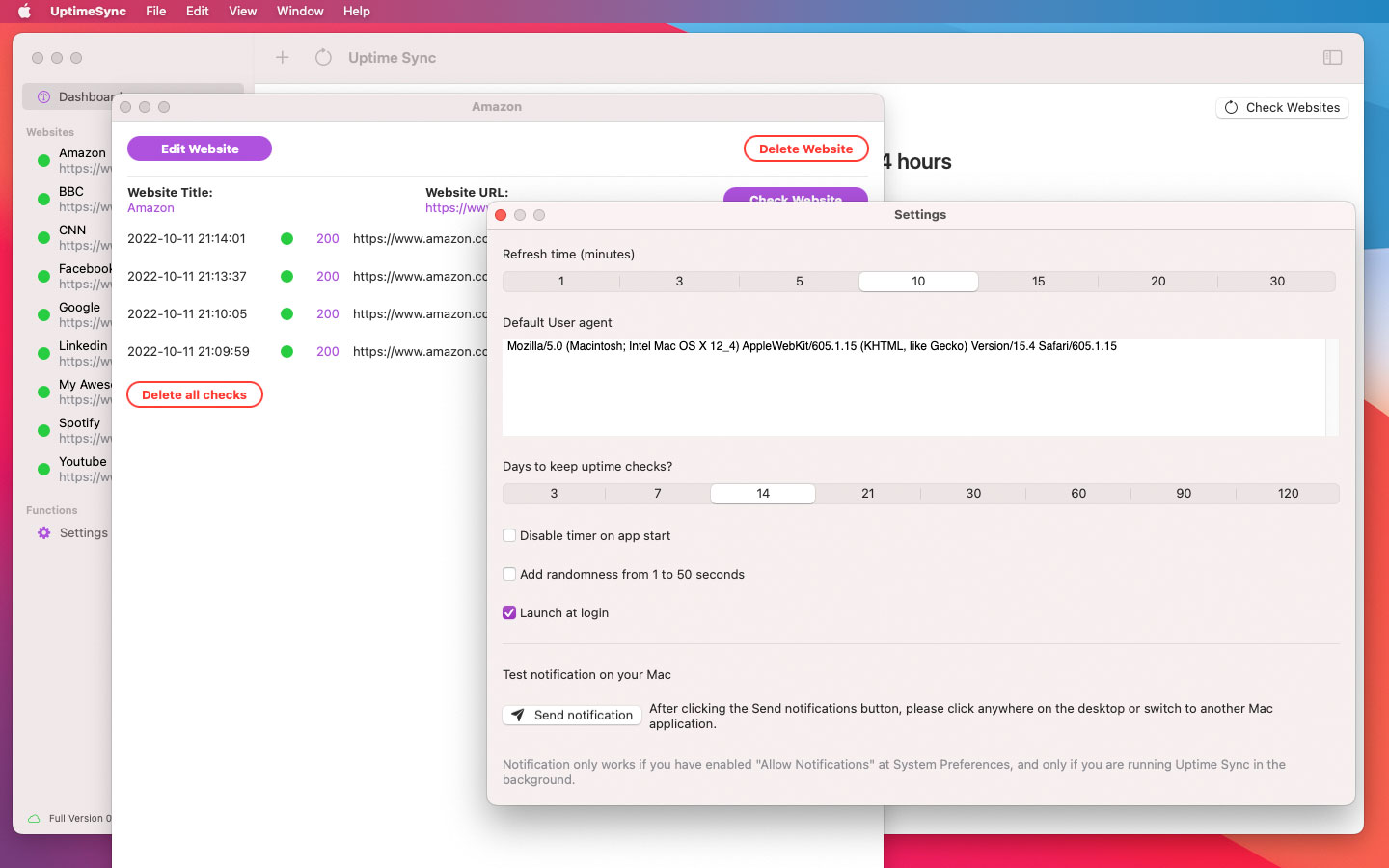
Must have web developer tool for monitoring
With Pulsely Uptime Sync, you'll receive real-time alerts when your website goes down, so you can take immediate action to fix the issue and get back online. And with iCloud support, you can access your uptime data from any device, making it easy to stay on top of your website's performance.
Don't let unexpected downtime ruin your online presence. Try Pulsely Uptime Sync today and keep your website running smoothly. The app is available now on macOS, iOS and iPadOS.

Features
Uptime Sync is a website uptime checker with iCloud support. You can monitor the uptime status of multiple websites with the data synchronized to multiple Mac computers with pending iOS and iPadOS devices support.
Uptime Sync is available on Mac, and soon on iOS and iPadOS.
The Uptime Sync uses Apple's iCloud to store all the app's data, keeping everything updated across multiple devices.
All data is securely stored only on the device user's iCloud account. No data is stored anywhere else.
Uptime Sync is a multi-platform Universal App
The Uptime Sync app is written in the latest SwiftUI framework, and it is available on macOS, iOS and iPadOS.
Troubleshoot iCloud sync problems
You might have occassional problems with the iCloud sync with different devices. Here are some suggestions on how to fix it.
Quit the app on Mac
You might try quitting the Uptime Sync app on Mac and re-open it.
Rebooting the device
Reboot your iOS, iPad and Mac usually fix most of the minor issues.
Make sure you Sign-in to the iCloud, with the same account
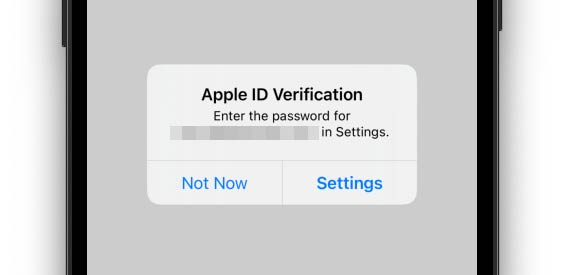
Please sign-in to the iCloud. On iOS and iPadOS, click "Settings" and then "iCloud", and make sure the account is the same, on all of your devices.
Your iCloud credentials might need to be re-entered occassionally. Please do so with the prompt on your device.
Enable cellular data
If you encounter trouble syncing iCloud data without wifi, go to "Settings" on iOS and iPadOS, and click "Cellular" to enable data.
Make sure iCloud and your devices aren't low on space
If your iCloud or devices are low on space, syncing between devices will have issues.
Last step: turn iCloud off and on for Uptime Sync
Turning iCloud off and on is the last step at trouble shooting iCloud sync issues.
Go to the "Settings" on iOS and iPadOS, and scroll down to the Uptime Sync. Toggle the switch once.
Please bear in mind that iCloud is a cloud services provided by Apple. Pulsely does not have any control with the service availabilities.